Extract PDF Pages
Copy selected pages into a clean PDF without uploading the source.
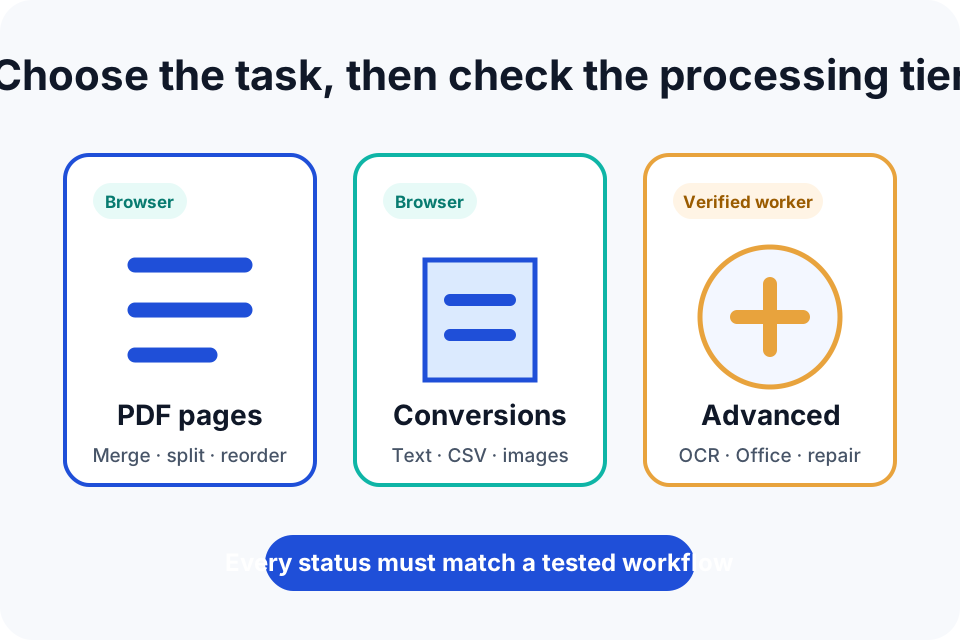
What Extract PDF Pages does
Copy selected pages into a clean PDF without uploading the source. The public page explains the operation separately from the processing workspace so that you can understand the source format, expected result, privacy boundary and main risks before choosing a file.
One PDF and exact page numbers to copy.
A clean PDF made from the requested pages.
When this tool is useful
Extract PDF Pages is designed for a focused document task rather than a complete desktop editing suite. It is most appropriate when you can keep the source, understand the requested change and inspect the new file immediately.
- Creating an evidence subset
- Pulling selected forms from a packet
- Saving specific pages without changing the original
Prepare the source file
Preparation reduces avoidable errors and makes it easier to compare the output. Before opening the workspace:
- Keep an untouched backup of the source.
- Close other editors that may still be writing to the file.
- Confirm that the file type, size, encryption and signature state match the published limits.
If the source is the only copy, create a backup first. For a digitally signed, regulated or evidentiary document, confirm whether modification is permitted and whether a new signature or formal validation process will be required.
How the processing workflow operates
- Open the separate workspace and choose the supported source file.
- The browser reads the selected file in local memory and displays task-specific controls.
- Review the options, then run the operation. The source is not posted through the DocNimble tool workflow.
- The browser creates the new output and offers a download.
- Save the result under a new name and complete the verification checks below.
Processed in your browser — supported source files are not uploaded through this tool workflow.
Ordinary page requests can still appear in web-server logs, and the browser or device can retain local history, temporary data or downloads. Close the tab and protect the downloaded result according to the sensitivity of the document.
Verify the downloaded result
A Download button confirms that a file was generated. It does not confirm that every page feature survived or that the output is appropriate for a particular destination. Complete these checks:
- Open the output in a second viewer.
- Compare page count, order, orientation, text and visible details with the source.
- Confirm that signatures, forms, links, layers or accessibility features were not unintentionally changed.
For important workflows, compare the output with the untouched source side by side. Record the tool, date and settings used so that the result can be reproduced or investigated later.
Known limitations
- The output is a new document, not a cryptographic excerpt of the original.
- Linked bookmarks may no longer point to the intended location.
- Selected pages can still contain hidden or sensitive content.
Password protection, corruption, non-standard encodings, digital signatures, forms, layers, attachments, accessibility tags and very large files can change how a PDF or document behaves. Use a specialist desktop application or recovery service when the source falls outside the published scope.
Frequently asked questions
Does Extract PDF Pages upload my file?
No. The live browser tool processes supported files on your device. The source bytes are not posted through the tool workflow.
Is the Extract PDF Pages output watermarked?
DocNimble does not add branding to generated files unless you explicitly choose the separate watermark tool.
How should I verify the result?
Keep the original, open the download in a second viewer and compare the important pages, text, layout, signatures, links and file size before relying on it.
Why is the tool status important?
Live means the advertised workflow has recorded acceptance evidence. Beta tools are runnable for controlled testing but still require successful real input/output/download verification before they can be called live.
Editorial and technical references
This page is maintained by the Support IT Editorial Team. The explanation is reviewed against the current DocNimble tool registry and workspace behaviour.
- MDN File API for browser file-selection behaviour.
- Report a compatibility or wording issue without sending confidential source content.