Portal Preflight
Measure file type, byte size, dimensions, page count and supported PDF rules against a verified requirement.
See how preflight works →Compress a PDF to 100 KB or 200 KB, resize a photo or signature to the exact KB a form asks for, and convert JPG to PDF. Free, in your browser, with no upload and no watermark.
Measure file type, byte size, dimensions, page count and supported PDF rules against a verified requirement.
See how preflight works →Compress PDFs with a text-preserving ladder, fit images into a min/max KB window, or raise a file that is too small.
Fit a PDF →Prepare individually named files, verify them against the portal template, then download a ZIP and optional merged PDF.
Build a pack →Every tool runs on its own page: choose a file, get the result, and read how to check it underneath.
Combine PDF files in a chosen order without uploading them.
Open tool →Combine PDF and image application documents into one ordered PDF.
Open tool →Extract selected pages into a new PDF in your browser.
Open tool →Copy selected pages into a clean PDF without uploading the source.
Open tool →Delete selected pages and download the remaining PDF.
Open tool →Enter a new page order and create a reorganised PDF.
Open tool →Rotate all or selected pages by 90, 180 or 270 degrees.
Open tool →Place multiple source pages on each output sheet or create a simple booklet order.
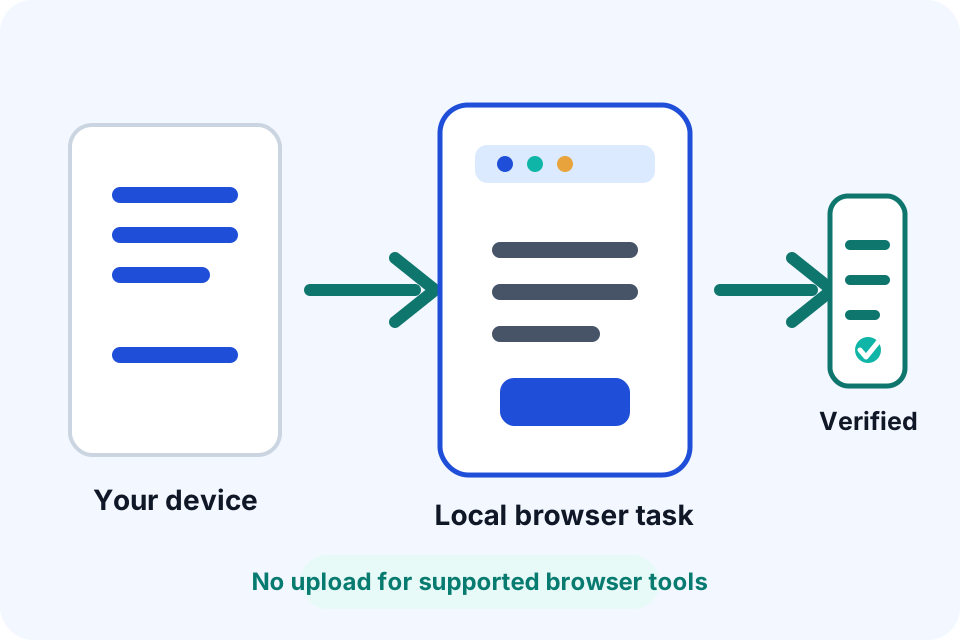
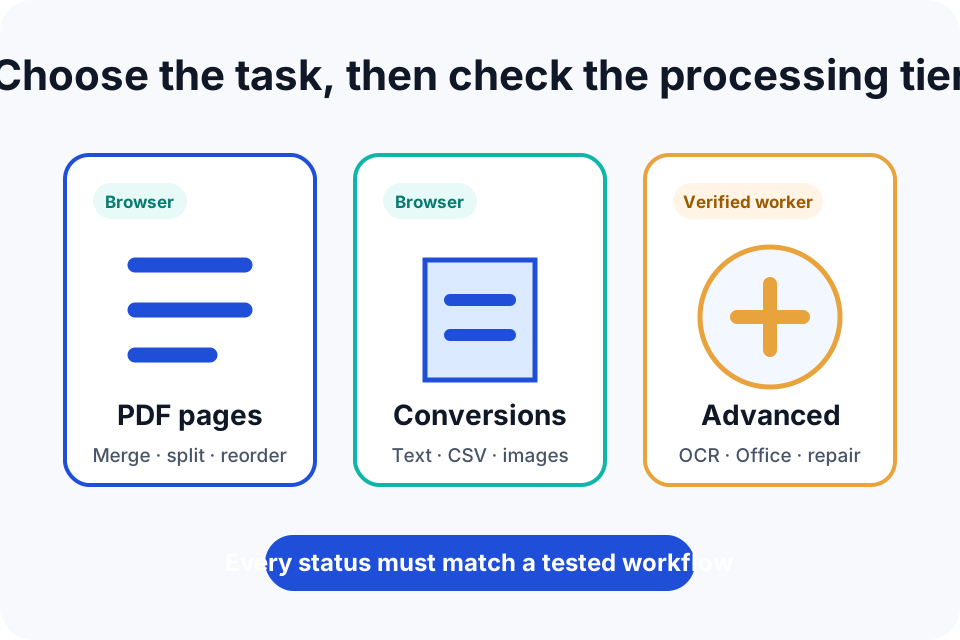
Open tool →Many everyday PDF operations do not need a server upload. Modern browsers can read selected local files, reorganise PDF pages, render images and create new downloads. DocNimble uses that approach for supported browser tools because it removes an unnecessary transfer step and keeps the source under the user’s control.
A browser label does not mean that nothing technical happens. The page loads a task-specific JavaScript library, reads the selected file in browser memory and creates a new result. You should still avoid shared devices for confidential work, close the tab when finished and keep the original outside the browser.
Some operations require software that a normal browser does not provide. Word, Excel and PowerPoint conversion can require an office rendering engine. OCR needs text-recognition software. Advanced PDF repair and compression can depend on specialist binaries. Those workflows use secure server processing. They appear as unavailable, beta or live according to actual service readiness rather than marketing promises.
Before an advanced tool can be called live, it must complete a real input-to-output test. Paid access never changes an unavailable tool into a working one, and the free browser catalogue remains usable when advanced processing is offline.
Start by deciding what result you need. “Make this file smaller” can mean image recompression, removing pages or converting a document to a different format. Choosing the wrong operation can reduce quality or change information that mattered.
This verification habit matters because PDF files can contain more than visible pages. They may include forms, annotations, bookmarks, attachments, metadata, layers or digital signatures. A simple page operation can affect some of those features. The tool page explains the main risks, but the person using the result remains responsible for checking the output.
For a browser-processing tool, DocNimble serves the application code and ordinary web page. The selected source file is handled by the browser workflow rather than submitted as a tool upload. Normal hosting logs can still record page requests, time, IP address and user-agent information. The Privacy Policy explains those distinctions in plain language.
Advanced server-processed tools use a different model. When a user deliberately submits a supported job, the input is stored under a random identifier in a protected location and is made available only through time-limited authenticated access. The result is checked before download and both input and output are subject to automated cleanup.
DocNimble does not claim that every file is compatible. It does not label an unavailable function as successful, create fake reviews, publish unreviewed drafts as expertise or add unsupported structured data merely to satisfy an online checker. Search metadata and schema should describe what a visitor can actually see and use.
We use Google Analytics to see which tools are used; it never receives your files. You can turn it off any time under Privacy choices. The tool area where you process files never shows advertising.
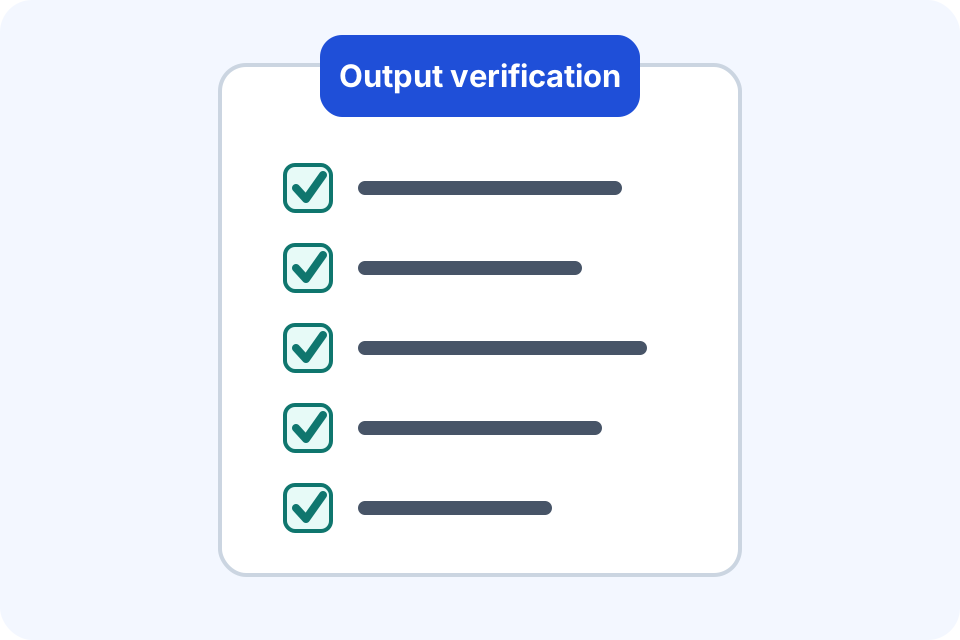
Page count: confirm that no page was omitted, unexpectedly duplicated or added. For a page-range tool, compare the viewer’s page numbers with printed numbers inside the document.
Visual layout: inspect small text, margins, tables, charts, image quality and page orientation. Office conversions are especially sensitive to fonts and print settings.
Searchable text: test selection and search when text access matters. A PDF made from images can look correct but contain no text layer. OCR output can contain recognition errors.
Document features: check links, bookmarks, forms, annotations and signatures when the workflow depends on them. A newly generated PDF can display correctly while those features change.
Destination requirements: compare the output with the receiving portal’s limits for size, format, password protection and page dimensions. Optimise only as much as needed; unnecessary conversion can reduce quality.
These checks are part of DocNimble’s editorial standard and appear throughout tool pages and guides. They help users choose the right operation and understand when a desktop application, specialist recovery service or formal document process is more appropriate.
Reduce unnecessary exposure when preparing Aadhaar, PAN and other identity documents for a legitimate online submission.
Diagnose common PDF rejection causes before repeatedly recompressing an exam-form document and making it unreadable.
Use a repeatable checklist before uploading identity, education, employment or supporting documents to an Indian government or public-service portal.
Turn extractable PDF text into cleaner Markdown headings, lists and simple tables while preserving the source meaning rather than inventing structure.
This homepage is maintained by the Support IT Editorial Team and reviewed under the DocNimble product-review process. The team documents the current application behaviour, privacy boundaries and verification steps. It does not claim legal, medical, accounting, archival or forensic certification.
Material product changes should update the visible review date, page metadata, structured data and sitemap together. This prevents freshness labels from changing automatically without a real review.