Convert to PDF/A
Create a PDF/A-oriented archival copy using Ghostscript after capability acceptance.
This advanced tool is not available yet. No Run button or success claim is shown.
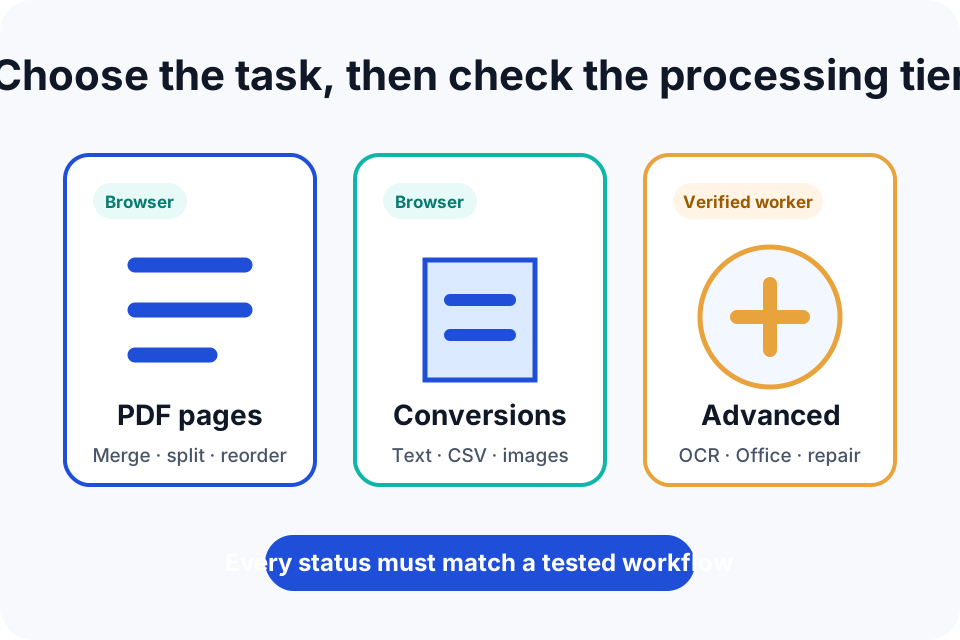
What Convert to PDF/A does
Create a PDF/A-oriented archival copy using Ghostscript after capability acceptance.
One PDF intended for an archival-oriented conversion.
A Ghostscript-generated PDF/A-oriented copy requiring independent conformance validation.
When this tool is useful
Convert to PDF/A is designed for a focused document task rather than a complete desktop editing suite. It is most appropriate when you can keep the source, understand the requested change and inspect the new file immediately.
- Archival preparation
- Creating a preservation candidate
- Testing a PDF/A workflow
Prepare the source file
Preparation reduces avoidable errors and makes it easier to compare the output. Before you choose a file:
- Keep an untouched backup of the source.
- Close other editors that may still be writing to the file.
- Confirm that the file type, size, encryption and signature state match the published limits.
If the source is the only copy, create a backup first. For a digitally signed, regulated or evidentiary document, confirm whether modification is permitted and whether a new signature or formal validation process will be required.
How the processing workflow operates
- Confirm that the advanced tool is beta or live.
- Sign in, confirm access and choose a supported source file.
- The application stores the upload under a random job identifier in a protected location.
- A signed request allows the secure processing service to retrieve the input through a short-lived token.
- The processing response is checked for signature, timestamp and replay safety. The output source, size and checksum are also verified.
- The result is exposed through an expiring download token and later removed by automated cleanup.
Secure processing is unavailable when authentication, service readiness or end-to-end testing is incomplete. Paid access does not convert an unavailable tool into a live tool.
Verify the downloaded result
A Download button confirms that a file was generated. It does not confirm that every page feature survived or that the output is appropriate for a particular destination. Complete these checks:
- Open the output in a second viewer.
- Compare page count, order, orientation, text and visible details with the source.
- Confirm that signatures, forms, links, layers or accessibility features were not unintentionally changed.
For important workflows, compare the output with the untouched source side by side. Record the tool, date and settings used so that the result can be reproduced or investigated later.
Known limitations
- Successful conversion is not conformance certification.
- Strict profiles may require additional colour/output-intent validation.
- Signatures and attachments need separate review.
Password protection, corruption, non-standard encodings, digital signatures, forms, layers, attachments, accessibility tags and very large files can change how a PDF or document behaves. Use a specialist desktop application or recovery service when the source falls outside the published scope.
Frequently asked questions
Does Convert to PDF/A upload my file?
Yes, to a secure processing server, and only after you sign in and press Upload. Files are kept under a random job ID, fetched through short-lived signed links and removed by automatic cleanup.
Is the Convert to PDF/A output watermarked?
DocNimble does not add branding to generated files unless you explicitly choose the separate watermark tool.
How should I verify the result?
Keep the original, open the download in a second viewer and compare the important pages, text, layout, signatures, links and file size before relying on it.
Do I need to sign up or install anything?
You need a free account. Free accounts can process 3 files a day; Plus removes the daily limit.
Editorial and technical references
This page is maintained by the Support IT Editorial Team. The explanation is reviewed against the current DocNimble tool registry and workspace behaviour.
- MDN File API for browser file-selection behaviour.
- OWASP File Upload Cheat Sheet for server-upload controls.
- Report a compatibility or wording issue without sending confidential source content.